
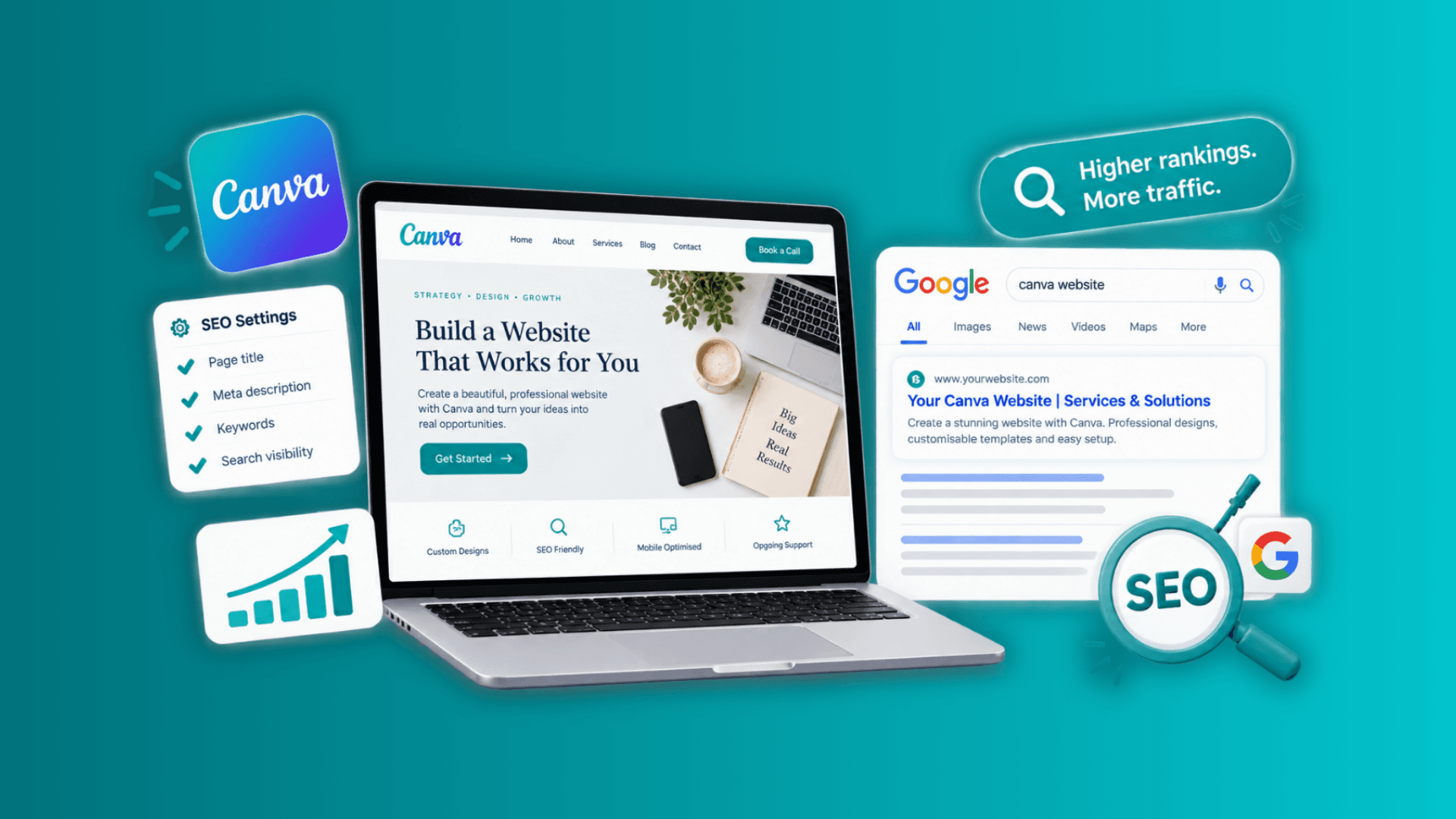
You've designed a beautiful website in Canva. The colours look right, your images are polished, and your services are clearly laid out. But how do you bring people in? In this guide, we'll explain how Canva website SEO works
Paula Sawicka
Content Creator
You've designed a beautiful website in Canva. The colours look right, your images are polished, and your services are clearly laid out. But there's one question you might be wondering about: will anyone actually find your website on Google?
It's a common concern for small business owners, freelancers, coaches and content creators who use Canva to build their online presence.
Can Canva websites rank on Google? Yes.
A website created with Canva can appear in Google search results, attract organic traffic and help potential customers discover your business. However, publishing a website and getting it to rank are two different things.
Canva makes website design accessible, but you still need to think about keywords, page content, website settings, links and what your audience is searching for. You also need to understand the limitations of Canva's website builder so you can decide where to focus your time.
In this guide, we'll explain how Canva website SEO works, how to get your Canva website on Google, and which changes can help improve your chances of attracting visitors from search engines.
Can Canva websites rank on Google?
Yes, Canva websites can rank on Google, provided they are publicly accessible, crawlable and contain content Google can understand and index.
Google does not require you to use WordPress, Wix or another particular website builder. Its technical requirements focus on whether a page can be accessed, whether it works correctly and whether it contains content that can be indexed.
That means you don't automatically need an expensive website or advanced coding skills to start appearing in search results.
However, being eligible to appear on Google does not guarantee that your website will be indexed or rank highly. Google considers many factors when deciding which pages to show for a search. These include relevance, content quality, usability and signals that help it assess the value of a page.
For example, imagine you're a freelance social media manager who has created a Canva website advertising your services. Your homepage might target a phrase such as "social media manager for small businesses". If the page clearly explains your services, the types of clients you help and the results you offer, Google has more useful information to work with than if the page consists mainly of images and a vague headline. The important distinction is this:
Publishing makes your website available online.
Indexing means Google has processed your page and may show it in search results.
Ranking determines where your page appears for a particular search.
These are three separate steps. Your website can be published without being indexed, and it can be indexed without appearing near the top of the results.
What is Canva website SEO?
Canva website SEO is the process of improving a website created in Canva so that search engines can understand its content and show it to people searching for relevant information, products or services. SEO stands for search engine optimisation. It involves much more than adding keywords to a page.
For a Canva website, SEO includes:
Choosing relevant keywords for your business.
Writing clear page titles and descriptions.
Creating useful, original website content.
Using descriptive headings and image text where supported.
Choosing a suitable website address.
Making the website easy to navigate on mobile devices.
Building relevant links from other websites and your own online content.
Checking whether your website appears in Google and measuring its performance.
Some SEO tasks are straightforward to manage through Canva's publishing settings. Others, particularly advanced technical SEO, may be more difficult because Canva does not provide the same level of control as a full content management system. The best approach is to get the basics right first, then work on attracting visitors and building your website's authority.
1. Choose the right keywords for your Canva website
Keyword research should happen before you write your website copy, not after you've finished designing everything.
A keyword is a word or phrase someone enters into a search engine. Your job is to identify the searches that match what you offer and then create content that answers those searches clearly.
Suppose you're a wedding photographer. Targeting a broad phrase such as "photography" is unlikely to be the most useful starting point. It's too general and doesn't tell you what the searcher wants. More specific phrases could include:
Wedding photographer in Manchester
Natural wedding photography in Manchester
Affordable wedding photographer for small weddings
How to find a wedding photographer
The first three phrases have commercial intent because the searcher may be looking for a photographer to hire. The fourth is informational and could work well as a blog post. Specific phrases can be useful targets for smaller websites because they help you focus on a defined audience. However, always check actual search demand and competing results before deciding which keywords are easiest to rank for.
How to find keywords for a Canva website
Start with these free research methods.
1. Google autocomplete
Open Google and begin typing a phrase related to your business. For example, enter "wedding photographer in" and look at the suggestions. These suggestions can reveal how people phrase their searches. They are ideas to investigate, not proof of search volume or low competition.

2. People Also Ask
Search for your main topic and review the questions Google displays. These can help you identify useful supporting content for your website or blog. If you've never done this before, all you need to do is search the term you want to rank for, and scroll to the bottom of the google page, you'll then find the 'People Also Ask' section.

3. Related searches
Scroll towards the bottom of the search results and look at related searches. These may suggest alternative wording, locations or specific problems your audience wants to solve.

4. Google Keyword Planner
Use Keyword Planner to explore related phrases and estimated search volumes. It is primarily designed for advertising research, so its figures should be treated as estimates rather than a guarantee of organic traffic.
5. Google Search Console
Once your website starts receiving impressions, Search Console can show you which searches are already bringing up your pages. This is particularly useful for finding phrases where your website is getting visibility but could attract more clicks.
Where should you place keywords on a Canva website?
Once you've selected a primary keyword for a page, use it naturally in important places:
The page title, where supported.
The main heading.
The opening paragraph.
Relevant section headings.
The page description or meta description, where supported.
The visible website copy.
Image alt text, where you can edit it.
Avoid repeating the same phrase in every paragraph. Google is designed to understand related words and the overall meaning of a page, so writing naturally is more useful than stuffing your content with keywords. A practical rule is to give each important page one main search intent. Your homepage might target your primary service, while a separate page or article addresses a more specific question.
When inserting keywords, don't just focus on the main primary keyword. Use the search terms throughout your website too so Google captures how useful and thorough your website truly is for people.
2. Set up your Canva website SEO settings
One of the easiest ways to improve your Canva SEO is to review the settings available when you publish your website.
Canva provides website publishing options that include settings for the website address, title, favicon, search engine visibility and other details. The exact options available can depend on the website type and your plan.
To review them, open your website design in Canva and select Publish Website. Open the website settings and check the options available for your design. Check out our complete guide to Canva websites which discusses these steps in more detail.
Write a descriptive website title
Your website title helps communicate what the page is about. It should describe your business or the specific purpose of the page.
For example, a weak title might be:
"My Website"
A more useful title would be:
"Wedding Photographer in Manchester | Emma Jones Photography"
The second version tells visitors and search engines what the website offers and where the service is available. Keep the title relevant to the actual page. Don't add unrelated locations or services simply because you hope to appear for more searches.
Write a useful meta description
A meta description is a short summary that may appear beneath your page title in Google search results.
Google can generate a different snippet from the page content when it considers that more relevant to a particular search, so your description isn't guaranteed to appear exactly as written. Even so, writing a clear description helps you communicate what visitors can expect.
For example:
"Looking for a wedding photographer in Manchester? Explore natural, relaxed wedding photography packages and find the right coverage for your special day."
This description identifies the service, location and benefit without repeating the same keyword unnecessarily.
If your Canva publishing settings provide a site description or page description field, use it thoughtfully. Remember that a description setting is not necessarily equivalent to full control over every technical SEO field available on other website platforms.
Check search engine visibility
Canva provides a search engine visibility setting when publishing supported website designs. Make sure you haven't accidentally configured your website to be hidden from search engines if you want it to appear on Google.
Also check that the website is publicly accessible. A private, password-protected or unpublished website cannot be treated like a normal public page that Google can freely crawl. After changing your settings, publish the website again so the changes are live.
3. Use a custom domain for your Canva website
Should you use a custom domain for Canva website SEO? In most cases, a custom domain is a sensible choice for a business that wants to build a recognisable brand over time. For example, compare these two addresses:
yourbusiness.canva.siteyourbusiness.com
Both can be used to publish a website, but the second gives you a domain that is directly associated with your business.
A custom domain can make your website easier to remember, look more professional on business cards and social media, and provide a consistent address to use in marketing campaigns. It also gives you a domain you can continue to build your brand around.
However, a custom domain is not a guarantee of better Google rankings. A website on a free Canva domain can still be eligible to appear in search results. Domain choice is one part of a much wider SEO strategy.
How to connect a custom domain to Canva
Canva supports connecting an existing domain to a published website on eligible plans. You can also explore purchasing a domain through Canva where that option is available.
The general process is:
Open your Canva website design.
Select Publish Website.
Choose the option to use an existing or new custom domain, where available.
Follow Canva's instructions to connect and verify the domain.
Complete any required domain or DNS setup. Remember that this can take 24-72 hours to properly update. So, if the website is not connected immediately, just give it some time.
Publish your website to the verified domain.
What if you already have a website on your domain?
Be careful before pointing an existing domain to Canva. If your current website is hosted elsewhere, changing its DNS settings could affect that website and other services connected to the domain.
If you want to keep your existing website while publishing a Canva site, consider whether a suitable subdomain would work for your project.
For example, you might use portfolio.yourbusiness.com for a Canva portfolio while keeping your main website on its existing platform. Subdomains work seemlessly with your main website. Contact the domain host platform that you use for the best solution to avoid any technical issues.
4. Create useful website content, not just attractive designs
This is where many Canva websites could improve. Canva makes it easy to produce polished layouts, but a visually impressive website can still provide very little information for Google to understand.
Imagine two websites for a personal trainer. The first has a full-screen photograph, a logo, a button saying "Book Now" and a short sentence about fitness. The second has a clear headline, a description of its personal training services, information about who the trainer helps, details about the training process, answers to common questions and an easy way to get in touch.
The second website gives potential clients more information to work with. It also provides more relevant context for search engines.
What should you write on your Canva website?
The answer depends on your business, but most service-based websites benefit from clear information about the following:
Who you help
Describe your ideal customer rather than trying to appeal to everyone.
What you offer
Explain your services, products or packages in straightforward language.
Where you operate
If you serve a particular town, city or region, mention it naturally where relevant.
Why someone should choose you
Include genuine experience, examples of your work, testimonials or details about your approach.
What visitors should do next
Make it clear how someone can book a call, request a quote, purchase a product or contact you.
You don't need to fill every page with long blocks of text. You need enough relevant information to answer the questions a visitor is likely to have.
Use headings to organise your content
Break your website into logical sections with clear headings. For example, a freelance graphic designer's website might include:
Graphic Design Services for Small Businesses
Branding and Logo Design
Website and Social Media Graphics
My Design Process
Client Testimonials
Frequently Asked Questions
Request a Quote
These headings help visitors find information quickly. Canva's design interface doesn't provide the same direct control over HTML heading tags that a traditional website builder may offer. Use its text and layout options to create a clear visual hierarchy, but don't assume that making text large or bold gives it a particular HTML heading level.
This is an important limitation to understand when planning a website that relies heavily on organic search traffic.
5. Optimise images on your Canva website
Images are a big part of what makes Canva websites appealing. They can also support SEO when used thoughtfully.
The first step is to make sure your images help visitors understand the page.
For example, a wedding photographer should show real examples of their work rather than relying entirely on generic stock photographs. A fitness coach might use images demonstrating exercises or explaining a training programme.
However, although these are visually appealing, without any context, Canva does not understand what is shown on the image. This is where you need to add or edit your image alt text, and describe the image accurately. Alt text helps people using screen readers understand relevant images and can help search engines interpret their content.
A useful example might be:
"Outdoor wedding ceremony photographed in Manchester"
A less useful example would be:
"Wedding photographer Manchester best wedding photography cheap wedding photos"
The second description is repetitive and reads like a list of search terms rather than a description of the image.
How to add alt text to images in Canva?
To add alt text to your Canva images, you first select the image, and open the pop up menu using the right button on your mouse. A pop up menu will appear and find 'alternative text'. This is where you can insert your image description manually or use Canva AI to do this for you.

Does alt text improve Canva SEO?
Alt text is worthwhile for accessibility and can help search engines understand images. It is not a shortcut to ranking an entire website. Prioritise images that communicate useful information, and make sure important information is also available as readable website text.
Avoid placing all your essential content inside a single graphic. A beautiful image containing your business name, services and contact details is not a substitute for clear text and accessible links.
Keep your website practical on mobile
A large desktop design can look very different on a phone.
Canva offers settings for mobile resizing on supported website designs. Check the published website on a real mobile device and look for:
Text that is too small to read.
Buttons that are difficult to tap.
Images that crop important details.
Sections that feel excessively long.
Navigation that is difficult to use.
Content that extends beyond the screen.
Google primarily uses the mobile version of a website's content for indexing. A website that works well on a phone is therefore important for both visitors and search visibility.
6. Publish your Canva website and check whether Google has indexed it
If you're wondering how to make a Canva website appear on Google, start by confirming that the website is actually published and accessible. After publication, Google needs to discover and crawl your page before it can consider indexing it. This process can take time, and there is no guaranteed timeframe.
Step 1: Check whether your website appears in Google
Open Google and search for:
site:yourdomain.com
Replace yourdomain.com with your actual domain.
This search can help you see whether Google has indexed pages from your website.
However, the site: search is not a complete or perfectly reliable index report. If your website doesn't appear, it doesn't automatically mean there is a permanent technical problem.
Step 2: Check your Canva publishing settings
Return to Canva, go to the 'publish website' settings, and confirm that:
Your website has been published successfully.
Your published URL is correct.
Search engine visibility is enabled, where the option is available.
The site is publicly accessible.
You haven't accidentally used password protection.
If you've recently changed your website address, check that you're sharing the correct live URL.
Step 3: Give Google time to discover your page
A newly published website may not appear immediately.
Google discovers pages through links and other signals, then crawls and processes them. You can help it discover your site by linking to it from relevant public pages, such as your social profiles, business directories and other websites you control.
Avoid repeatedly publishing tiny changes just to try to force Google to notice the site. Focus on making meaningful improvements.
Step 4: Use Google Search Console where possible
Google Search Console is a free tool that helps website owners monitor their performance in Google Search and investigate indexing issues.
Start at Google Search Console. For a custom domain, domain verification may be possible using the DNS method, depending on how the domain is managed.
Once your property is verified, you can use the URL Inspection tool to check what Google knows about a particular URL and whether it is eligible for indexing.
There is an important distinction here: verifying a domain in Search Console does not automatically make a website rank. It gives you information and tools to monitor and troubleshoot its presence in Google.
Canva does not offer every technical SEO control that a platform such as WordPress provides, so don't assume that every conventional Search Console or sitemap instruction will work in exactly the same way for a Canva website.
Google also explains that a sitemap can help it discover URLs but does not guarantee that they will be crawled or indexed. See Google's sitemap documentation.
7. Build links to your Canva website
Links from other websites can help people discover your business and provide Google with additional context about your website. This is particularly important when your website is new and few people know it exists.
You don't need to buy hundreds of backlinks. Start with relevant, legitimate ways to get your website in front of people who may genuinely find it useful.
Practical ways to promote your Canva website
Add your website to your social profiles.
Include the link on relevant profiles where you are active, such as Instagram, TikTok, Pinterest, LinkedIn or YouTube.
Social profile links are useful for referral traffic and discovery, although you shouldn't assume that every social link will directly improve rankings.
Create useful content on other platforms.
If you publish tutorials, videos or articles that answer questions related to your business, include a relevant link to your website when it adds value.
List your business in appropriate directories.
A local business may benefit from a complete Google Business Profile and reputable local directories, provided it meets their eligibility requirements.
Collaborate with relevant creators.
Guest articles, interviews, partnerships and genuine recommendations can introduce your website to a new audience.
Ask for links when they make sense.
If a partner, client or organisation mentions your work on its website, a relevant link can make it easier for readers to find you. The quality and relevance of these links matter more than simply accumulating a large number.
8. Can you use a Canva website for local SEO?
Yes. Canva can be a practical option for a small business that wants a simple website targeting customers in a specific location.
For example, a hairdresser in Vienna might want to appear for searches related to hair styling in Vienna. A wedding photographer in Bristol might want to attract couples planning weddings in that area. The important thing is to make the location and service clear. For a local service business, consider including:
Your main service and location in the page title, where supported.
A clear explanation of the services you offer.
The areas you serve.
Your business contact details.
Genuine reviews and testimonials.
Relevant photographs of your work.
A clear booking or enquiry option.
Avoid creating lots of nearly identical pages that simply replace one town name with another. If you serve several locations, make sure each location page contains genuinely useful and relevant information. If your business is eligible, a Google Business Profile can help you manage how your business appears across Google Search and Maps. Keep the information accurate and consistent with your website.
For local SEO, a simple Canva website with clear service information may be enough to establish a useful online presence. Businesses that need extensive location pages, advanced structured data or more complex content management may eventually benefit from a different platform.
9. Understand the limitations of Canva SEO
Canva is a good fit for many simple websites, but it isn't designed to offer every feature available in a dedicated content management system. Understanding those limitations will help you decide whether Canva is the right platform for your goals.
Limited control over technical SEO
Advanced SEO sometimes involves structured data, canonical tags, redirects, robots directives, detailed page templates and other technical settings. Canva does not provide the same level of direct access to all these controls as a platform designed for extensive SEO customisation.
If your strategy depends on implementing advanced technical changes, check whether Canva supports the specific feature before committing to it.
Less flexibility for large content websites
A simple portfolio, landing page, event website or small business site can be a good fit for Canva. A website that needs hundreds of articles, complex categories, extensive internal linking, multiple authors and advanced publishing workflows may be easier to manage with a dedicated content management system.
For example, if you plan to publish dozens of detailed blog posts every month, you should consider how you will organise and maintain that content as the website grows.
Fewer options for advanced SEO analysis
Canva supports Google Analytics on eligible plans and custom domains, helping you understand visitor activity after you connect it. However, analytics and search performance are not the same thing. Google Analytics helps you understand how people interact with your website, while Search Console provides information about how your website performs in Google Search.
Both can be useful, but their availability and setup requirements differ. You can find Canva's instructions for setting up Google Analytics.
Should you switch from Canva to WordPress?
Not necessarily. If you need a simple, attractive website that explains your services and directs visitors towards an enquiry or purchase, Canva may be sufficient.
If your main business strategy depends on organic traffic from a large library of blog posts, advanced technical SEO, complex site architecture or extensive integrations, WordPress or another flexible CMS may be a better long-term choice.
The right platform is the one that supports the website you actually need. Don't switch simply because someone claims Canva websites cannot rank on Google. They can. Instead, consider the features, flexibility and ongoing work required to reach your goals.
10. Make your Canva website more engaging
SEO helps people discover your website, but getting visitors to stay, explore your services and take action is another challenge. A visitor might arrive from Google, read your headline and leave because they cannot quickly find the information they need.
This is where thoughtful design and useful interactive elements can improve the experience.
For example, a service-based website could use a frequently asked questions section to answer common objections before someone books a call. A coach could organise different programmes into tabs. A creator could display client feedback in a testimonial carousel.
These elements can make a page easier to explore when they are implemented well.
Add interactive widgets to your Canva website
If you're building websites for clients or selling Canva website templates, interactive widgets can help you offer more than a static design. With Inspireclicks, Canva website creators can add interactive elements such as:
FAQ accordions to organise common questions without overwhelming the page.
Tabs to separate services, packages or other related information.
Testimonial carousels to help visitors browse customer feedback.
Image carousels to showcase projects, products or portfolio work.
Enquiry forms and email signup forms to help turn interested visitors into leads.
The key is to use these features to improve the visitor's experience, not simply to add more movement to the page.
For example, a wedding photographer could use an image carousel to showcase different wedding styles, an FAQ accordion to explain packages and a contact form to make enquiries easier.
Interactive widgets do not automatically improve Google rankings. Their value comes from helping visitors understand your offer, navigate the website and take the next step.
Keep important information accessible, make sure the website works on mobile devices and test any embedded elements after publishing.
Want to make your Canva website more interactive? Explore Inspireclicks to see how interactive widgets can add useful functionality to your Canva website designs.
11. Why is my Canva website not showing on Google?
If your Canva website isn't appearing in search results, don't assume you need to rebuild it.
Work through these common causes first.
Your website is new
Google may not have discovered or processed your website yet.
What to do: Confirm that it is published, share the live URL through relevant channels and use Search Console to inspect the URL if available.
Search engine visibility is disabled
A publishing setting may prevent your site from being discoverable in search engines.
What to do: Check the website settings in Canva and make sure search engine visibility is enabled.
Your website is not publicly accessible
A private or password-protected website is not available for normal public crawling.
What to do: Review your publishing and access settings.
Your content is too vague
A website that contains very little descriptive text may give visitors and search engines limited information about what you offer.
What to do: Add clear descriptions of your services, audience, location and relevant experience.
You're targeting a very competitive keyword
Even if your website is indexed, it may not appear prominently for a broad phrase dominated by established websites.
What to do: Research more specific searches that match your services and create genuinely useful content around them.
Your website has very few external links
A new website with no links from other public pages may take longer to be discovered.
What to do: Link to your website from relevant profiles, directories, articles and partner websites.
You recently changed your domain or URL
Google may still have information about an older address, or it may not have processed the new one. What to do: Check the live URL, confirm that your domain is connected correctly and inspect the new address in Search Console where possible.
You've made changes but Google hasn't updated its results
Search results do not necessarily change as soon as you republish a website. What to do: Give Google time to recrawl the page and check its indexing status rather than repeatedly making minor edits. Remember, indexing is not guaranteed. Google's technical requirements for appearing in Search explain the basic conditions a page must meet.
12. A practical Canva SEO checklist
If you want to improve your Canva website ranking, use this checklist as a starting point.
Publish the website and test the live URL.
Check that search engine visibility is enabled.
Choose a primary keyword that matches your business or page.
Research related searches and customer questions.
Write a descriptive website title.
Add a relevant description where supported.
Use clear headings and useful, original website copy.
Add accurate alt text to relevant images where possible.
Check the website on mobile.
Consider using a custom domain for your business.
Link to your website from relevant public profiles.
Set up Google Search Console where possible.
Check whether Google has indexed your website.
Review visitor activity and search performance.
Improve the content based on what your audience needs.
You don't need to complete every task in one afternoon. Start with publishing settings, useful content and keyword research, then work through the remaining items.
Frequently asked questions about Canva SEO
Can Canva websites rank on Google for free?
Yes. Canva allows users to publish websites using free Canva domains, and a website on a free domain can be eligible for Google Search. A custom domain is not an absolute requirement for indexing. However, a custom domain may be a better long-term choice for a business building a recognisable brand.
How long does it take for a Canva website to appear on Google?
There is no guaranteed timeframe. Google may discover and index a new website relatively quickly, or the process may take longer. Publishing your website does not guarantee that it will be indexed. Check the website's accessibility and publishing settings, then use Search Console to investigate indexing where possible.
Is Canva SEO good enough for a small business?
For a small business with a straightforward website, Canva may provide enough functionality to establish an online presence and attract relevant visitors. If you need advanced technical SEO, a large blog, complex site architecture or extensive customisation, a more flexible platform may be worth considering.
Do I need a custom domain for Canva website SEO?
No. A free Canva domain can still be eligible to appear in search results. A custom domain is often preferable for branding, trust and long-term ownership of your online identity, but it does not guarantee higher rankings.
Can I add keywords to my Canva website?
Yes. You can write relevant keywords naturally into your website's titles, headings and visible text. Where supported, you can also use page descriptions and image alt text. Focus on explaining your services clearly rather than repeating the same phrase unnecessarily.
Can I use Google Analytics with a Canva website?
Canva supports Google Analytics on eligible paid plans and custom domains. You need to connect a Google Analytics property and configure the relevant settings. Depending on your audience and location, you also need to ensure that your cookie consent and privacy arrangements meet applicable legal requirements.
Can I use Google Search Console with a Canva website?
You can use Google Search Console to monitor your website's presence in Google Search where you can verify the relevant property. A custom domain may make domain verification more straightforward. Search Console can help you inspect URLs and investigate indexing, but it cannot force Google to rank a page.
Does Canva SEO work for a one-page website?
Yes. A one-page Canva website can be suitable for a portfolio, event, landing page or small service business. The page still needs clear content, a relevant title, useful information and a good visitor experience. A single page may be less suitable if you need to target many unrelated services or publish a large amount of informational content.
Is Canva better than WordPress for SEO?
Neither platform is automatically better for every website. Canva is convenient for creating attractive websites with a relatively simple setup. WordPress generally offers more flexibility for content-heavy websites and advanced SEO customisation. Your decision should depend on the type of website you want to build and how important organic search traffic is to your business.
Does adding interactive widgets improve Canva SEO?
Interactive widgets do not automatically improve rankings. They can, however, help visitors find answers, compare services and navigate your website more easily. Make sure important information remains accessible and that widgets work correctly on mobile devices.
Final thoughts: Is Canva good for SEO?
Canva websites can rank on Google, and you don't need to abandon Canva simply because you're concerned about SEO.
The most important starting points are to publish your website correctly, choose relevant keywords, write useful content, review your SEO settings and make it easy for people to understand what your business offers.
You should also understand Canva's limitations. If you need advanced technical controls or plan to build a large content-driven website, another platform may offer more flexibility.
For many creators, freelancers and small businesses, though, Canva provides a practical way to get a website online. With thoughtful keyword research, useful content and a consistent approach to promotion, your website can become a valuable part of your online presence.
And once people arrive, focus on giving them a good reason to stay. Clear navigation, useful information, strong examples of your work and relevant interactive features can help turn a website visit into a genuine enquiry.
Ready to improve your Canva website? Start with the SEO checklist above, then explore Inspireclicks if you'd like to add interactive FAQs, tabs, testimonials and other useful widgets to your Canva website.