
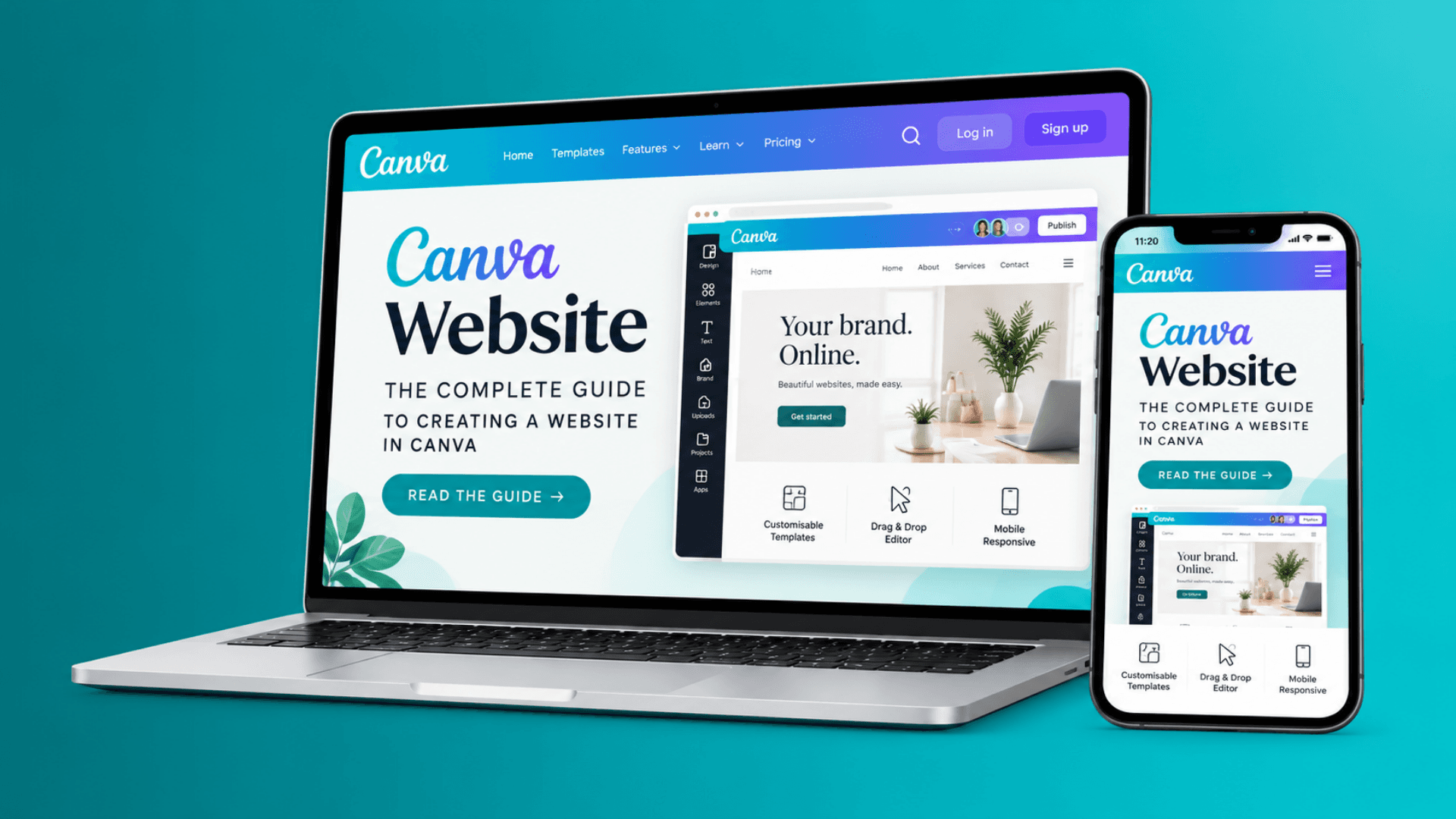
Take a deep dive into how Canva has transformed it's functionality to help people create beautiful and powerful websites with an easy drag-and-drop service. Now, you can make it interactive with no coding.
Paula Sawicka
Content Creator
If you need a website but don't want to spend weeks learning WordPress, hiring a developer, or wrestling with complicated website builders, a Canva website is worth considering.
Canva has grown far beyond a graphic design tool. Its website builder lets you create visually polished websites using the same drag-and-drop editor many people already know from designing presentations, social media graphics, lead magnets and marketing materials.
That makes a Canva website particularly appealing for small businesses, freelancers, coaches, creators and anyone who wants to get a simple website online without starting from scratch.
But there is a difference between knowing how to make a page in Canva and creating a website that actually works for your business.
Your website still needs a clear structure, useful content, good navigation, strong calls to action and a design that works on different screen sizes. And if you want visitors to take action, there are times when the basic Canva website features may not be enough on their own.
This guide walks you through the entire process, from choosing a Canva website template to publishing your site, connecting a domain, improving your SEO and adding interactive features.
What is a Canva website?
A Canva website is a website created using Canva's website builder and visual design editor.
Instead of building pages with code, you create your website visually. You can choose a template, change the colors and fonts, add images, write your content, create buttons and arrange the page using Canva's familiar editing interface.
This makes Canva website design especially accessible to people who aren't web designers.
You can use a Canva website for things such as:
A small business website
A personal website
A portfolio
A coaching business
A freelancer website
A creator or influencer website
A UGC creator portfolio
A landing page
An event website
A digital product business
A lead-generation page
A simple online presence for a new business
For many of these uses, you don't need dozens of pages or complicated functionality. You need a professional-looking website that clearly explains who you are, what you offer and what visitors should do next.
That's where Canva can work particularly well.
Is Canva a website builder?
Yes. Canva includes a website-building feature that allows you to create and publish websites from the Canva editor.
To access Canva's website builder, simply click on ‘website’ from the homepage to be taken to the editor. From there, head over to the sidebar and click on ‘templates’ to access all website templates that Canva offers. If you see a crown symbol on the right hand side, this means that you need a paid plan in order to use it.
The biggest difference between Canva and more traditional website builders is the design experience.
With platforms such as WordPress, Wix or Squarespace, you are working inside a system designed primarily around building websites.
Canva approaches the process from a design-first perspective.
If you've already used Canva, the interface feels familiar. You can start with a template or a blank design and then customize the layout, typography, imagery and branding.
That makes the Canva website builder particularly appealing to people who care about visual design but don't necessarily want to learn the technical side of website development.
You can explore Canva's current website builder and available features on Canva's official website.
How to Make a Website in Canva
The process is relatively straightforward, but the quality of the finished website depends heavily on what you do before you start designing.
Here's the basic process.
1. Decide what your website needs to accomplish
Before opening Canva, answer one simple question:
What do I want someone to do when they visit my website?
For a freelancer, the answer might be:
Contact me about a project.
For a coach:
Book a discovery call.
For a creator:
Work with me or view my portfolio.
For a digital product business:
Buy my product or join my email list.
For a local business:
Call, book or visit my business.
Your answer should influence the entire Canva website design. A common mistake is to start with colors, photographs and fonts before deciding what the website is actually supposed to accomplish.
Start with the goal. Design around it.
2. Plan your website structure
You don't necessarily need a complicated website.
A simple website can often be built around a handful of important sections.
For example:
Homepage
Introduce your business and immediately explain what you do.
About
Give visitors a reason to trust you.
Services
Explain what you offer and who it's for.
Portfolio or work
Show examples of what you've done.
Testimonials
Let previous customers explain the value they received.
FAQ
Answer the questions that might prevent someone from contacting or buying from you.
Contact
Give visitors an easy way to get in touch.
You don't necessarily need all of these as separate pages. Some Canva websites work perfectly well as one-page websites where the sections appear one after another.
The important thing is that visitors shouldn't have to figure out how your website works. If you’re unsure on how to build a highly-converting website, you can download our free ‘highly converting website anatomy’ which gives you step-by-step information on how your website should look in order to convince more people.
3. Choose a Canva website template
One of the easiest ways to start is with a Canva website template.
Instead of staring at a blank page, you can choose a design that already has a structure you can adapt.
When choosing a template, don't only ask:
"Does this look pretty?"
Ask:
Does the layout suit my business?
Is the text easy to read?
Is there enough space around the content?
Is the navigation clear?
Does the design leave room for my calls to action?
Can I replace the images without ruining the layout?
Does the design match my brand?
Will the page still work when viewed on a phone?
A template should save you time, not dictate your entire website. Remember that epople who create those website are not always knowledgeable in the way that it should be structured, or the best design/website anatomy that will help you convert. These are just creators who love to design things.
Therefore, it is better to think of it as a starting point.
4. Create your homepage
Your homepage is usually the most important page on your Canva website.
Visitors should understand three things almost immediately:
What do you do?
Who do you help?
What should I do next?
A simple homepage structure might look like this:
Headline
Tell people what you offer.
Supporting text
Explain the benefit or outcome.
Call-to-action
Give them a clear next step.
Introduction
Briefly explain who you are.
Services or products
Show what people can buy or enquire about.
Social proof
Add testimonials, reviews, client logos or examples of your work.
FAQ
Address common questions.
Final call-to-action
Give visitors another opportunity to take action.
This is much more effective than filling the homepage with every piece of information you can think of.
5. Use consistent Canva website design
Good website design isn't about adding as many elements as possible.
Consistency usually makes a bigger difference.
Choose:
One primary font
One secondary font if necessary
A small color palette
Consistent button styles
Consistent heading sizes
Consistent spacing
A consistent image style
If you already have brand colors, use them throughout the website.
For example, Inspireclicks uses a teal-based brand palette. Keeping that color system consistent across the website, graphics and social content makes the brand easier to recognize.
You don't need a different color for every section.
In fact, too many colors can make a Canva website look less professional.
6. Write website copy before filling the page with design elements
This is one of the biggest mistakes people make when creating websites in Canva.
They design first and then try to squeeze their words into whatever space is left.
Do the opposite.
Write your main copy first.
Your homepage should answer questions such as:
What is this business?
Who is it for?
What problem does it solve?
Why should I trust you?
What do you offer?
How can I get started?
Keep paragraphs relatively short. Use headings to break up the page. Use bullet points where they make information easier to scan. Most people don't read websites from top to bottom like a book. They scan them.
Your design should make that easy.
7. Add clear calls to action
A website without a clear call to action can leave visitors wondering what to do next.
Your call to action could be:
Book a call
Contact me
Get a quote
Shop now
Download the guide
Join the newsletter
View my portfolio
Start a free trial
Learn more
Try to make your CTA specific.
"Click here" doesn't tell someone much.
"Book your free consultation" does.
You can use Canva's button and linking functionality to connect visitors to relevant pages or external destinations.
For more advanced interactions, you can also add third-party or custom interactive elements to extend what your Canva website can do.
8. Add social proof
People are naturally more comfortable taking action when they can see evidence that others have had a good experience.
Consider adding:
Customer testimonials
Reviews
Case studies
Client logos
Portfolio examples
Results
Media mentions
Social proof from your community
If you have several testimonials, a static block of text can quickly make the page feel long.
An interactive testimonial carousel can be a cleaner alternative.
This is one example of where adding interactive website elements can make a Canva website feel more like a conventional modern website rather than a static page. You can create a testimonial carousel using a Canva app ‘Inspireclicks’. You can view our article on this here.
9. Add an FAQ section
A useful FAQ can do more than answer questions.
It can remove objections.
Think about the questions people ask before they contact you or buy from you.
For example:
How much does it cost?
How long does the process take?
Who is this service for?
Do you offer refunds?
How do I get started?
Do I need to book a call first?
A simple FAQ can work well on a Canva website.
If you have a lot of questions, an FAQ accordion can make the page easier to navigate because visitors can open only the questions they're interested in. You can also do this using the Inspireclicks app.
10. Make your Canva website mobile friendly
This step is easy to overlook.
A website might look fantastic on your desktop and feel completely different on a phone. Since the majority of people use their phones to search the web, it’s more important to optimise the website for mobile screens than for computers.
This is actually a limitation of Canva, sometimes, your content and design can look great on computer and tablet, but the mobile version gets distorted. A simple solution to some common mobile design issues is to simply select the elements and group them together. Once you’ve grouped the sections or elements together, preview them again on the mobile version, and resize them appropriately.
To preview your Canva website on the mobile version, simply click on ‘preview’ at the top right hand corner, and select the mobile icon at the top of the page. This will allow you to preview any mobile issues. Pay particular attention to:
Font sizes
Button sizes
Image proportions
Text wrapping
Spacing
Navigation
Section heights
Long paragraphs
Horizontal layouts
A visitor shouldn't need to zoom in or scroll sideways. Your website needs to be easy to use on the device your audience actually uses.
11. Add navigation that makes sense
Navigation helps visitors move around your website without getting lost.
For a simple website, you might use navigation such as:
Home | About | Services | Portfolio | FAQ | Contact
Don't create ten navigation items simply because you have ten sections.
Keep the most important destinations visible.
If you're building a one-page Canva website, you can also structure your content so visitors can move naturally between sections. To create a Canva website that has multiple pages, you can simply use the plus button at the very bottom of the page to add another page.
Once you have added and designed your other pages, it would be useful to allow your Canva website visitors to view them. To create a navigation header at the top of your website, go to ‘publish website’ at the top right hand corner, and at the bottom, you’ll have ‘settings’. Click on the settings button and ensure that the ‘navigation menu’ toggle is switched on. You can view step by step instructions below:
Canva Website SEO: How to Get Your Website Found on Google
Creating a beautiful website is only half the job. If you want people to discover your website through Google, you also need to think about SEO.
SEO, or search engine optimization, is the process of improving your website so that search engines can better understand and potentially show your pages for relevant searches.
There is no guaranteed way to make a new website rank first in Google. Competition, relevance, content quality, authority, technical factors and many other signals affect search visibility.
But there are several things you can control.
1. Choose a primary keyword
Every important page should have a clear subject.
For example, if you're a UGC creator offering content creation services, you might target:
UGC creator or something more specific such as: UGC creator in London
If you're a wedding photographer, you might target: London wedding photographer
The keyword should match what people would realistically search for. Don't choose a keyword simply because it has a high search volume.
A more specific search can sometimes bring visitors who are much more likely to become customers.
2. Use your keyword naturally
Once you've selected your target keyword, use it naturally in relevant places.
For an article about Canva websites, for example, the primary keyword is:
Canva website
You might naturally use it in:
The page title
The introduction
A relevant H2 heading
Body content
Image alt text where appropriate
Internal links
The meta description
Don't repeat the phrase over and over. Google doesn't need to see "Canva website" in every sentence to understand the topic. Write for the person reading the page first.
3. Create useful headings
Headings help both visitors and search engines understand the structure of your content.
For example:
Canva Website: The Complete Guide
What is a Canva website?
Is Canva a website builder?
How to make a website in Canva
Choose a template
Create your homepage
Add your content
Publish your website
Canva website SEO
This structure makes the subject of the page very clear.
4. Write a useful page title
Your title is one of the first things people see in search results. You need to make sure that it is both enticing and informative. For example, taking this article as an example, our title could have been :A guide to Canva websites which includes our keyword, but it does not inform you (the reader) or Google what the article is truly about.
When thinking of the title, make sure it contains the primary keyword while clearly telling the searcher what the website covers.
5. Write a compelling meta description
A meta description gives searchers a short preview of what they can expect from the page.
The meta description isn't a magic ranking trick. Its main job is to accurately explain the page and encourage the right person to click.
To add your meta description and add your page title so the google search console knows what your website is about, you can follow these simple steps below:
VIDEO
Create all your pages
Go to ‘publish website’
Click on ‘settings’ at the bottom of the page
At the top, you’ll find ‘site’ and ‘pages’, make sure that you are on the ‘pages’ option
Then, click on each page and add your titles and descriptions. You can also use Canva’s Magic SEO tool to generate this information for you. It will analyse your content on each page, and insert everything automatically for you.
Canva Website Design Tips That Make a Big Difference
You don't need to be a professional web designer to create a good-looking Canva website.
A few simple principles can take you a long way.
Give your content room to breathe
Don't fill every empty space.
White space helps visitors understand where one section ends and another begins.
Keep your fonts readable
Decorative fonts can work for logos and occasional headings, but body text should be easy to read.
Use high-quality images
Blurry or badly cropped images can make an otherwise good website look unfinished. To ensure good quality, you can use the ‘frame’ element in Canva.
Make your buttons obvious
A button should look like something that can be clicked. You can add shadows elements to your buttons to give them a more realistic and ‘stand-out’ effect.
Don't hide important information
Your visitors shouldn't have to hunt for your prices, services, contact details or next step.
Keep your design consistent
Your website should feel like one brand rather than a collection of unrelated Canva templates.
If you’re unsure on how to build a website that truly converts visitors to customers, be sure to download our free landing page anatomy from the freebies section!
How to Make a Canva Website More Interactive
This is where you can take a basic Canva website to another level.
A static page can communicate information, but interactive elements can make it easier for visitors to explore, compare, enquire and take action.
Depending on what you're building, you might want:
FAQ accordions
Tabs
Image carousels
Testimonial sliders
Contact forms
Email signup forms
Booking forms
Payment buttons
Pricing tables
Countdown timers
Sticky CTA bars
For example, instead of displaying six testimonials in a long column, you could place them inside a testimonial carousel.
Instead of displaying ten FAQ answers all at once, you could use an accordion.
Instead of sending visitors to a separate page to contact you, you could add a form directly to the experience.
These small changes can make a website feel considerably more polished.
That's the idea behind Inspireclicks.
Inspireclicks is designed for people who want to get more from Canva websites without having to become web developers. The goal is to give creators and businesses practical interactive elements they can add to their Canva websites.
Can you sell products through a Canva website?
A Canva website can be used as part of a selling or lead-generation process, but your exact setup depends on what you're selling and how you want customers to pay.
For example, your website might:
Link to an online store
Send visitors to a checkout
Promote a digital product
Collect leads
Encourage visitors to book a call
Direct visitors to an external payment page
If your website needs more advanced functionality, you may need to connect external services or use additional tools.
The important thing is to decide what the customer journey looks like before designing the page. If you are selling products through other providers like stanstore, gumroad, wordpress, or other, then you can always add photos of your products to your canva website, and link back to the actual sales page on your store. Alternatively, you can add paypal payment links using the paypal app. You can add these links to your buttons and collect payments straight from your Canva website.
Can you add forms to a Canva website?
Forms are useful when you need visitors to send you information.
Examples include:
Contact forms
Enquiry forms
Booking forms
Application forms
Lead-generation forms
Newsletter signup forms
If collecting information is an important part of your business, make sure the form is easy to find and doesn't ask for unnecessary information.
The shorter and simpler the form, the easier it is for someone to complete. For some types of forms, you can always use a form builder app called Jotform. They offer a variety of different fillable forms that you can embed inside your Canva website.
Can a Canva website rank on Google?
A Canva website can be discoverable through search engines, but publishing a website doesn't automatically mean that it will rank highly.
Search visibility depends on many factors.
Your chances of attracting organic traffic improve when your website has:
Useful, original content
Clear page topics
Relevant keywords
Strong page titles
Good headings
Descriptive content
A logical website structure
Internal links
A good user experience
Mobile-friendly pages
Relevant external references and links where appropriate
For competitive searches, building authority can also take time.
This is why SEO should be treated as an ongoing process rather than something you finish on the day you publish your website.
To ensure that your Canva website is crawlable by the search engines like google search, make sure to switch on your ‘search engine visibility’ toggle in your website settings.
Canva Website vs Traditional Website Builders
One of the most common questions is whether Canva is enough for a "real" website.
The answer depends on what you need.
A Canva website can make a lot of sense when you want:
Simple setup
Visual design control
A relatively straightforward website
A portfolio
A landing page
A small business website
A creator website
A simple personal website
A more specialized website platform may make more sense when you need:
Complex databases
Large online stores
Advanced memberships
Extensive blogging functionality
Sophisticated web applications
Highly customized functionality
There isn't one website platform that is right for every business.
The best choice depends on what you need the website to do.
Common Canva Website Mistakes to Avoid
Designing everything before writing the copy
This often creates awkward layouts and weak messaging.
Write your important content first.
Trying to say everything on the homepage
Your homepage should guide visitors, not overwhelm them.
Using too many fonts
Two fonts are often enough.
Using too many colors
A small, consistent palette usually looks more professional.
Forgetting mobile visitors
Always check the mobile experience before publishing.
Having no clear CTA
Don't make visitors guess what to do.
Ignoring SEO
A beautiful website won't automatically bring organic traffic.
Making the website too complicated
If your audience can't figure out where to go next, more features won't fix the underlying problem.
Canva Website Checklist
Before publishing your website, work through this checklist.
Strategy
Do I know what the website is supposed to achieve?
Do I know who I'm trying to reach?
Is my main offer clear?
Is there a clear call to action?
Design
Is the design consistent?
Are the fonts easy to read?
Are the colors consistent?
Are the images high quality?
Is there enough white space?
Content
Is the homepage clear?
Have I explained what I offer?
Have I included relevant social proof?
Have I answered common questions?
Is my contact information easy to find?
SEO
Does each important page have a clear topic?
Have I chosen relevant keywords?
Is the primary keyword used naturally?
Is the page title descriptive?
Have I written a useful meta description?
Have I added internal links?
Are images appropriately described?
Is the website easy to use on mobile?
Conversion
Are my calls to action obvious?
Can visitors easily contact me?
Can visitors easily buy or book if applicable?
Have I removed unnecessary steps?
Have I made the next action obvious?
Frequently Asked Questions About Canva Websites
Is Canva good for making a website?
Canva can be a practical choice for simple websites, landing pages, portfolios, creator websites and small business websites, particularly if you value an easy visual design process.
Whether it's suitable for you depends on how complex your website needs to be.
Is a Canva website free?
Canva offers free website creation options, although some features, assets and domain options may depend on your Canva plan and setup.
Check Canva's current pricing and website features before choosing a plan.
Can I use my own domain with a Canva website?
Canva supports custom domain options, subject to the current Canva plan and domain setup available to you.
If having your own domain is important for your business, check the current domain options before publishing.
Can I create a multi-page Canva website?
Yes, Canva supports website designs that can include multiple pages. The exact capabilities and publishing options can change as Canva updates its website tools.
Can I make a Canva website mobile friendly?
Yes, Canva's website experience is designed to work across different screen sizes, but you should still review your design carefully on mobile before publishing.
A responsive framework doesn't automatically make every design decision perfect.
Can I add SEO to a Canva website?
Yes, you can work on the SEO fundamentals of a Canva website, including page content, titles, descriptions and keyword targeting.
However, SEO is much broader than adding keywords to a page. Content quality, relevance, website structure, links and competition all matter.
Can I add a contact form to a Canva website?
You can incorporate forms into a Canva website using available Canva functionality or external/third-party tools, depending on the type of form you need.
For businesses that rely heavily on enquiries, forms can be one of the most useful additions to a Canva website.
Can I add interactive elements to a Canva website?
Yes, depending on the feature and implementation, you can add interactive experiences such as forms, buttons and other external or third-party elements.
This is an area worth exploring if you want your Canva website to do more than simply display information.
Final Thoughts
A Canva website doesn't need to be complicated to be effective.
For a freelancer, creator, coach or small business, a well-planned website with clear messaging, professional design and an obvious next step can be more useful than a huge website packed with pages nobody visits.
Start with your audience and your goal.
Choose a Canva website template that gives you a sensible foundation. Write your content before getting too carried away with the design. Keep your navigation simple, make your calls to action obvious and check everything carefully on mobile.
Then think about what your visitors actually need to do.
If your website needs forms, FAQs, testimonials, email capture, payments or other interactive elements, you don't necessarily have to abandon Canva and move to a more complicated platform.
You can build on the Canva website experience with the right tools.
That's where Inspireclicks comes in.
Want to make your Canva website more interactive? Explore Inspireclicks to discover practical widgets and interactive elements designed to help you turn a simple Canva website into a more useful experience for your visitors.