
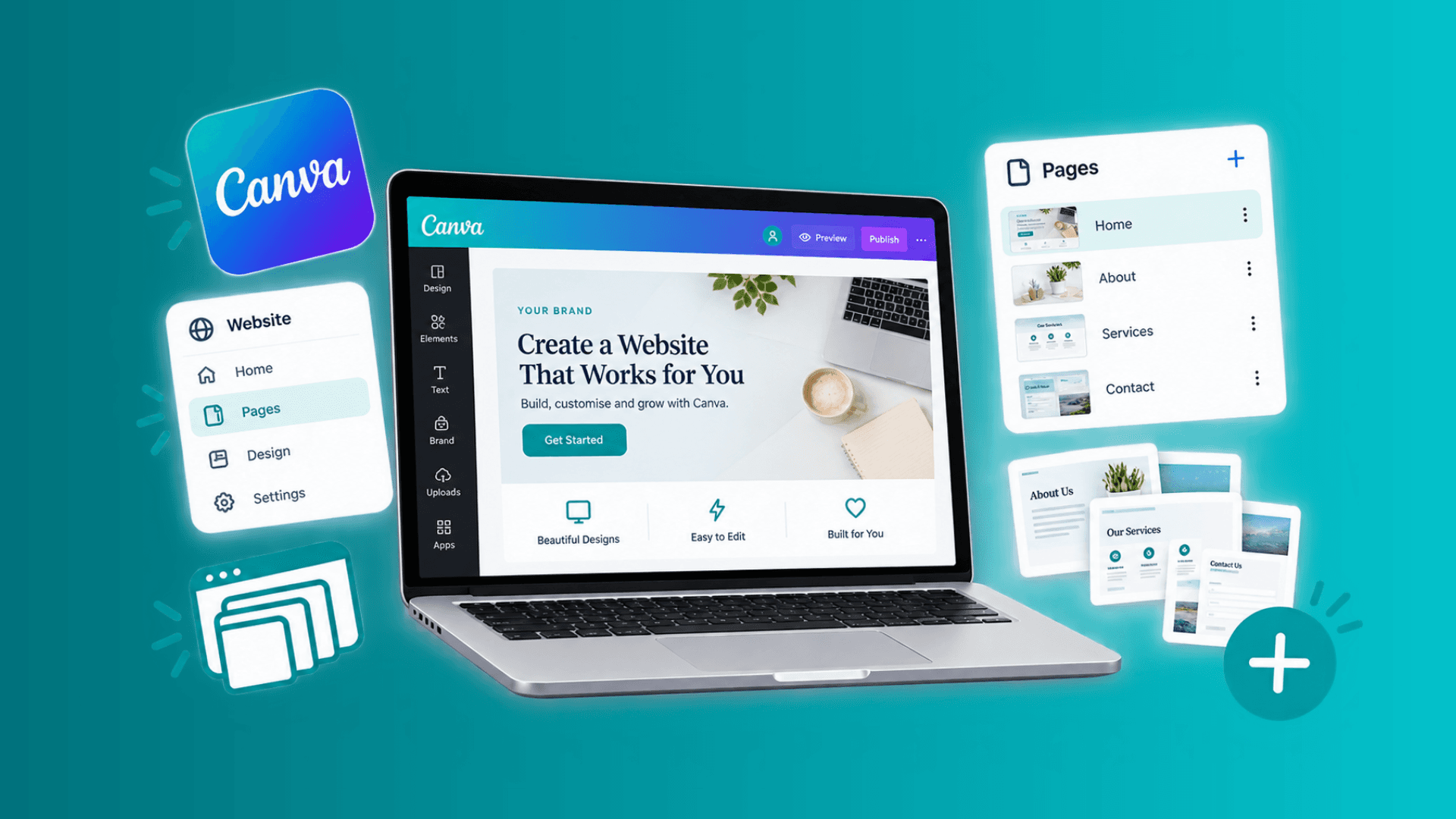
Make your Canva website look and feel like a real website with more than just one page. Create, design and link multiple pages within your Canva website.
Paula Sawicka
Content Creator
Canva has made it easier than ever to create a professional-looking website without writing a single line of code. But what if you need more than one page? Perhaps you want a homepage, an About page, a services page and a separate contact page. Can you create all of these within one Canva website?
Yes! You can now create a multi-page website in Canva, with separate pages, internal navigation and individual page URLs. You no longer need to rely on the old workaround of publishing several separate Canva designs and linking them together.
In this guide, you'll learn how to add multiple pages to a Canva website, create a navigation menu, link buttons to different pages, customise page URLs and optimise your website for search engines. Whether you're building a portfolio, a small business website, a service-based website or a landing page for your next project, these steps will help you organise your content into a website that's easier to navigate.
Can You Add Multiple Pages to a Canva Website?
Yes. Canva supports multi-page websites, allowing you to create separate pages within one website rather than placing all your content on a single scrolling page. For example, a small business website could contain:
Home: Introduce your business and explain what you offer.
About: Tell visitors about your background, experience and mission.
Services: Explain your services, packages or pricing.
Portfolio: Showcase your previous work.
Contact: Give visitors a way to get in touch.
Each page can have its own URL path, page title and description. You can also create a navigation menu to help visitors move between pages.
According to Canva's current help documentation, a website can contain up to 45 pages. Each page can have up to 20 sections while designing, although publishing limits depend on your Canva plan.
Canva Free websites can publish up to 10 sections per page, while eligible paid plans support up to 20 sections per page. These limits are separate from the maximum number of pages. For the latest details, refer to Canva's official website design guide.
How to Add Multiple Pages to a Canva Website
Follow these steps to create a website with multiple pages in Canva.
Step 1: Open Canva and Create a Website
First, log in to your Canva account.
Open the Canva homepage.
Select Templates from the side menu.
Search for Website.
Choose a website template or create a blank website.
Select the template to open it in the Canva editor.
If you already have a Canva website, open the existing design instead.
Tip: Start with a website design rather than a presentation if you want a conventional scrolling website with multi-page navigation and individual page settings.
Step 2: Add a New Page to Your Canva Website
Once your website is open in the editor, you can start adding pages.

Look for the Add page option in the website editor.
Select it to create a new page.
Repeat the process for every additional page you need.
Add the text, images, graphics, buttons and other elements relevant to each page.
For example, you might create your homepage first, then add an About page, a Services page and a Contact page.
Remember that adding a page is different from adding a section. A section expands the content on an existing page, whereas a new page gives you a separate page within the website.
If you want visitors to access your About page through its own address, create a new page rather than simply adding an About section to your homepage.
Step 3: Give Each Page a Clear Title
Once you've added your pages, organise them so you can easily identify them.

For example:
Home
About
Services
Portfolio
Contact
In Canva's page thumbnails or grid view, you can add page titles using the page options. Clear page names make the website easier to manage and help you keep your content organised.
Choose names that describe the purpose of each page. Avoid generic labels such as "Page 2" or "Page 3", especially when you're building a website that other people will need to navigate.
Step 4: Design Each Page Separately
Now customise the content of each page.
You can use Canva's existing design tools to add text, images, shapes, videos, graphics and other visual elements.
For a small business website, you might structure the pages like this:
Homepage
Introduce your business, explain your main offer and include a clear call to action.
About page
Explain who you are, what you do and why visitors should trust you.
Services page
Describe your services, packages or products. Use buttons to direct visitors to the next step.
Portfolio page
Display examples of your work, case studies or previous projects.
Contact page
Include your contact information and an appropriate way for visitors to reach you. Keep the visual style consistent across your website. Reuse your brand colours, fonts, buttons and logo so visitors understand that they are still browsing the same business.
You don't have to make every page look identical. Instead, use a consistent design system while adapting the layout to the content of each page. To learn more about Canva websites, check out our thorough and comprehensive guide that discusses every part of building a successfull Canva website here.
How to Link Pages in a Canva Website
Creating multiple pages is only part of the process. Visitors also need an easy way to navigate between them.
Canva allows you to link text and other design elements to pages within the same website.
Step 5: Link Text or Buttons to Another Page
Here's how to link a button or text element to a different page in your Canva website.

Firstly, ensure that you have named the other pages correctly.
Then, select the text, button or element where you want to add the link to the other page.
Click on that text or element with the right button of your mouse to open the tools bar. Find the Link icon in the toolbar.
Open the link settings.
Under Pages in this document, choose the page you want to link to.
Select Done to save the link.
For example, if your homepage has a button labelled "Meet the Team", select that button and link it to your About page. You can use the same method to link a "View Services" button to your Services page or a "Get in Touch" button to your Contact page.
Repeat this process wherever a link would help visitors find relevant information. Important: Preview your website and test each link after publishing. A button that looks correct in the editor isn't useful if it directs visitors to the wrong page.
Step 6: Add a Navigation Menu to Your Canva Website
A navigation menu helps visitors find the main pages of your website without returning to the homepage every time.
Canva offers a built-in navigation menu that you can enable and customise.

To add one:
Open your website design in the Canva editor.
Select Publish website or the dropdown next to the Publish button in the top right hand corner.
Open Settings.
Find the Navigation menu option.
Turn the navigation menu on.
Return to your design and select the menu to customise its appearance.
You can also use Canva's Quick actions. On Windows, press / to open Quick actions, type "Navigation menu" and select the relevant option. On Mac, Canva's documented shortcut is Command + E.
Once the menu has been added, customise the colours, font, text size and other styling options to match your brand.
A simple menu for a service-based business might look like this:
Home | About | Services | Portfolio | Contact
Keep your navigation straightforward. Too many menu items can overwhelm visitors, especially on mobile devices.
Step 7: Customise the Navigation Menu Items
After adding the menu, check that it contains the pages you want visitors to access.
Canva's navigation menu settings allow you to manage the items displayed in the menu.
Select the navigation menu in your design.
Choose Edit to open its settings.
Open the Items tab.
Review the available menu items.
Use the options to hide items that shouldn't appear in the menu or add links where required.
Check the menu labels and styling.
For example, you might have a separate landing page for a special offer that you don't want to display in the main navigation. You can keep that page within your website while hiding its menu item, depending on your setup. A page hidden from the navigation menu isn't necessarily private. If visitors have its URL, they may still be able to access it. Use the appropriate privacy settings if you need to restrict access.
How to Customise Individual Canva Website Page URLs
One advantage of creating a multi-page Canva website is that you can give individual pages meaningful URL paths.
For example, your website might have these addresses:
yourwebsite.com/for your homepageyourwebsite.com/aboutfor your About pageyourwebsite.com/servicesfor your Services pageyourwebsite.com/contactfor your Contact page
The exact domain depends on your publishing setup. If you do not have a custom domain connected, your URL will look more like this; www.yourname.my.canva.site/home-page. Either way, Google or other crawling bots will be able to understand what your pages are about with appropriate page names. You can learn more about Canva SEO here.
Step 8: Set a Custom URL for Each Page

To customise your page URLs:
Open your website in Canva.
Select Publish and then open Settings.
Go to the Pages tab.
Select the page you want to customise.
Find the Custom URL path field.
Enter a short, descriptive path, such as
about,servicesorcontact.Repeat the process for your other pages.
Keep URL paths short and easy to understand. Use relevant words that describe the content of each page.
For example, /services is clearer than /page-3. If you're publishing to a custom domain, your final address may look like yourwebsite.com/services. The exact domain options available to you depend on your Canva plan and publishing configuration.
How to Optimise Each Canva Website Page for SEO
Creating additional pages can help you organise information around different topics and user needs. However, simply adding pages won't automatically improve your Google rankings. You still need useful content, clear navigation, appropriate page metadata and a website that search engines can access.
Step 9: Add a Unique SEO Title to Each Page
Your page title helps describe the content of a page to search engines and potential visitors.
To customise it:
Open your website's publishing settings.
Select Settings.
Open the Pages tab.
Choose the page you want to edit.
Find the Page title field.
Enter a descriptive title relevant to that page.
For example:
Homepage: Creative Design Studio | Your Brand Name
About page: About Us | Your Brand Name
Services page: Design Services | Your Brand Name
Contact page: Contact Our Team | Your Brand Name
Try to make each title specific to its page. Avoid using the same title across every page. If your Services page focuses on logo design, for example, a title such as "Logo Design Services | Your Brand Name" is more informative than "Page 3 | Your Brand Name".
Step 10: Write a Unique Page Description
A page description summarises what visitors can expect to find on the page. Search engines may use it as the snippet displayed in search results. In Canva's page settings, look for the Page description field. Write a concise summary that accurately describes the page and naturally includes relevant search terms. You can view our step-by-step video instructions here.
For example, an About page description could be:
"Meet our creative design team, learn about our approach to branding and discover how we help small businesses build a consistent visual identity."
A Services page description could be:
"Explore our graphic design services, including logo design, brand identity and marketing materials for growing businesses."
Canva recommends descriptions of approximately 150 to 160 characters. Treat this as a useful guideline rather than a strict Google ranking requirement. Make each description unique and avoid stuffing it with repeated keywords.
Step 11: Use Relevant Keywords Naturally
Each page should have a clear purpose and focus on the questions or needs of its intended audience.
For example:
A page about logo design can naturally use terms related to logo design services.
A page about your business can include your brand name and relevant background information.
A contact page should make it easy to find your contact details and understand how to get in touch.
Use the main topic in the page title, headings and body text where it makes sense.
Avoid repeating the same keyword excessively. Clear, helpful content is more valuable than unnatural keyword repetition.
Step 12: Check Your Website's Search Visibility
Before publishing, check that your website isn't accidentally hidden from search engines.
Open your website's publishing settings.
Go to the site settings.
Find the search engine visibility option.
Make sure visibility is enabled if you want your site to appear in search results.
Review any password-protection settings that could prevent public access.
Canva documents that it generates a sitemap for published websites, which can help search engines discover pages. You can read more in Canva's official guide to website SEO.
Remember that making a website public doesn't guarantee immediate indexing or high rankings. Search engines need time to discover and evaluate your content.
If you're using a custom domain, Google Search Console can help you monitor indexing and search performance.
How to Publish Your Multi-Page Canva Website
Once you've created your pages, configured navigation and checked your SEO settings, it's time to publish.
Step 13: Preview Your Website Before Publishing
Before making your website live, preview it and check that everything works as expected. Pay particular attention to:
Whether all pages contain the correct content.
Whether the navigation menu displays the right items.
Whether internal links direct visitors to the correct pages.
Whether text and images look good on mobile devices.
Whether buttons and calls to action work correctly.
Whether page titles, descriptions and URL paths are accurate.
If your website will be used by customers, test the full visitor journey. For example, start on the homepage, open the Services page, click the relevant call to action and confirm that the next step works.
Step 14: Publish Your Website
When you're satisfied with the result:
Select Publish or Publish website in Canva.
Review your publishing options.
Choose an available domain option.
Check your website settings.
Publish your website.
Select the option to view the live website.
Canva supports publishing through a free Canva domain, a newly purchased domain or an existing connected domain, subject to the available plan and design-type restrictions. After publishing, open the live website and test every page and navigation link again. If you make changes later, publish the website again so your latest edits appear online.
Common Problems When Adding Multiple Pages to a Canva Website
If your multi-page website doesn't work as expected, these are the first things to check.
My new page isn't appearing in the navigation menu
Check that the page exists in the website design and that your navigation menu is enabled.
Then select the navigation menu, open its item settings and check whether the page has been hidden from the menu.
My button isn't linking to the correct page
Select the button in the editor and reopen its link settings. Make sure you've selected the intended destination under "Pages in this document".
Preview the website and test the link again.
My page URL isn't working
Check that you've published the website after changing the URL path. Confirm that the path is spelled correctly and that you're using the correct domain. If you've recently changed a URL, update any links that still point to an old address.
My Canva website isn't appearing on Google
First, make sure search engine visibility is enabled and that the website can be accessed publicly.
Then review the page titles, descriptions and content. If you're using a custom domain, Google Search Console can help you identify indexing issues. Remember that indexing can take time, and appearing in search results isn't guaranteed simply because a website has been published.
Canva won't let me publish my page
Check the number of sections on the page. Canva Free has a publishing limit of 10 sections per page, while eligible paid plans support up to 20. If you exceed your plan's limit, you may need to remove sections or change your plan before publishing.
Best Practices for a Professional Multi-Page Canva Website
Adding pages is straightforward, but a well-organised website needs more than additional layouts.
Here are some practical tips to keep your site useful and easy to navigate.
1. Plan your website structure first. Decide which information belongs on each page before designing. This helps prevent duplicate content and unnecessary pages.
2. Keep navigation simple. Use clear labels such as Home, About, Services and Contact rather than creative names visitors might not understand.
3. Give each page a purpose. Every page should answer a question, explain an offer or help the visitor take a meaningful next step.
4. Maintain a consistent visual identity. Use your brand colours, typography, logo and button styles consistently across the website.
5. Design for mobile users. Preview every page on smaller screens and check that text remains readable, buttons are easy to tap and images display correctly.
6. Optimise each page individually. Write a unique page title and description, use relevant headings and provide useful content.
7. Link related pages together. A Services page could link to your Portfolio page, while a Portfolio page could direct visitors to your Contact page.
8. Keep your site focused. More pages aren't necessarily better. A small website with four useful pages can be more effective than one with 20 pages of repetitive content.
Frequently Asked Questions
How many pages can you add to a Canva website?
Canva supports up to 45 pages in a multi-page website according to its current help documentation. Section limits are separate: Canva Free can publish up to 10 sections per page, while eligible paid plans support up to 20.
Can I create a multi-page website with Canva Free?
Yes. Canva Free supports website creation and publishing, including multi-page layouts. However, some publishing features and limits differ by plan, including section limits and custom-domain options.
How do I link two pages in Canva?
Select the text, button or other element you want to use as a link. Open the link settings, choose the destination under "Pages in this document" and select Done. Preview the website to confirm that the link works.
Can each page of a Canva website have its own URL?
Yes. Canva allows you to configure individual page URL paths in the publishing settings. For example, you could use /about for an About page and /services for a Services page.
Can I add a navigation menu to a Canva website?
Yes. Open your website's publishing settings, enable the Navigation menu option and customise its appearance and items in the editor.
Do multiple pages help with Canva website SEO?
They can help you organise content around different topics and provide separate URLs, titles and descriptions. However, multiple pages alone don't guarantee better rankings. Each page needs useful, relevant content and appropriate SEO settings.
Can I turn my existing one-page Canva website into a multi-page website?
You can open an existing website design in Canva and add new pages using the Add page option. Review your navigation, page settings and publishing options before republishing the website.
Should I use multiple pages or one long scrolling page?
Choose a single scrolling page for a simple event, personal landing page or one-off campaign. Choose multiple pages when your content needs distinct destinations, such as Services, About, Portfolio and Contact.
If your website needs a large blog, complex content management, extensive e-commerce features or advanced technical SEO controls, compare Canva with a dedicated website platform before committing to the design.
Final Thoughts
Creating a multi-page website in Canva is a practical way to organise your content, make navigation easier and give visitors a more complete picture of your business.
Start by adding the pages you need, link them through buttons and a navigation menu, customise each page's URL and SEO settings, and test the complete website before publishing.
Most importantly, make every page useful. A clear structure, consistent design and helpful content will give your visitors a better experience than simply adding more pages for the sake of it. Want to make your Canva website more interactive? Explore Inspireclicks to discover ways to add features such as FAQ accordions, tabs, testimonial carousels, image carousels and other useful widgets to your Canva website. These features can help you present information more effectively and create a more engaging experience for your visitors.